
Hook an Existing MCP
Connect to an existing MCP server (like Exa) through the client.
Build Your Own
Create and deploy your own MCP server with custom tools.
Hook an Existing MCP
Connect your Truffle to any MCP server that supportsstreamable-http transport — no coding required.
Steps
- Open Settings in the TruffleOS Desktop app
- Go to the MCPs section in the sidebar
- Click Add New MCP
- Fill in the server details:
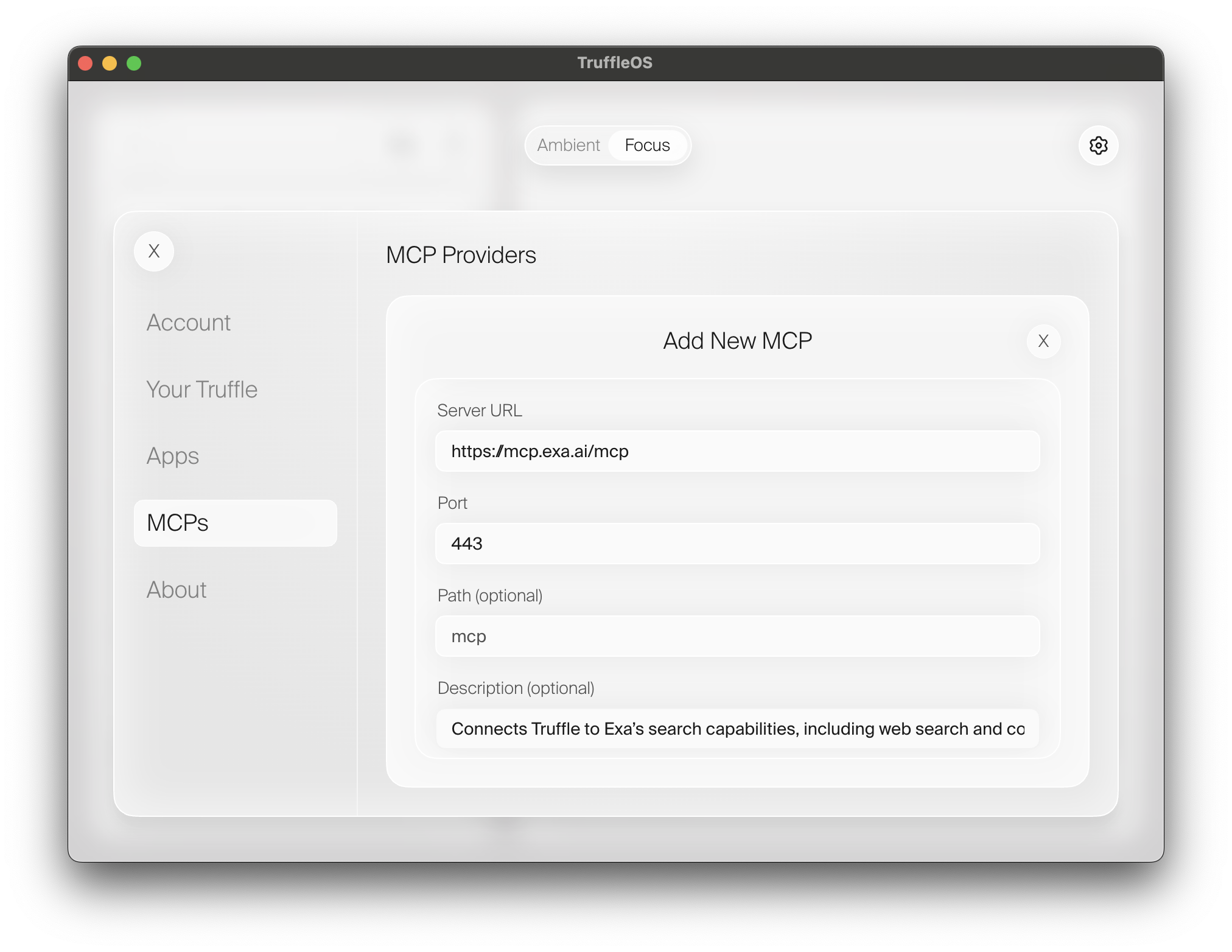
| Field | Description |
|---|---|
| Server URL | The full MCP server URL (e.g., https://mcp.exa.ai/mcp) |
| Port | Server port (443 for HTTPS, 80 for HTTP) |
| Path | The MCP endpoint path (usually mcp) |
| Description | Optional description of what the MCP provides |
Example: Adding Exa AI
Exa AI provides powerful web search, code search, and research tools via MCP.| Field | Value |
|---|---|
| Server URL | https://mcp.exa.ai/mcp |
| Port | 443 |
| Path | mcp |
| Description | Connects Truffle to Exa’s search capabilities, including web search and code search |
- “Search for recent developments in AI agents”
- “Find Python examples for OAuth 2.0”
- “Research Stripe and summarize their products”
Build Your Own
Want custom tools? Build and deploy your own MCP server. In this guide, we’ll build Research — a Focus app with web search and content extraction tools.Source Code
View the complete Research app on GitHub
What We’re Building
Research is an MCP server that exposes tools your Truffle can call when you ask questions. When you ask “What’s the latest news about AI?”, your Truffle can use these tools to search the web and return results. Tools we’ll create:search_web— Search the web with DuckDuckGosearch_news— Search for news articlesfetch_url_content— Extract content from any URL
What is MCP?
Model Context Protocol (MCP) is a standard for AI tools. Focus apps are MCP servers that:- Run on port
8000 - Expose tools with descriptions
- Use
streamable-httptransport
Project Structure
Step 1: Create the Config File
Createtruffile.yaml:
Key Differences from Ambient Apps
| Field | Focus App | Ambient App |
|---|---|---|
type | foreground | background |
default_schedule | Not needed | Required |
| Server | Runs MCP on port 8000 | Runs once per schedule |
Step 2: Write the MCP Server
Createresearch.py:
Step 3: Understanding the Code
The FastMCP Pattern
Every Focus app follows this pattern:The @mcp.tool() Decorator
This is how you expose functions to your Truffle:
Writing Good Tool Descriptions
| Bad | Good |
|---|---|
"Searches stuff" | "Search the web using DuckDuckGo. Returns titles and URLs." |
"Gets data" | "Fetches and extracts the main text content from a URL." |
"News" | "Search for recent news articles. Returns headlines with sources." |
- Say what the tool does
- Mention what it returns
- Note any limitations (e.g., “Some sites may block scraping”)
Parameter Types
Use Python type hints — they become the tool’s input schema:API Reference
FastMCP
Create an MCP server instance:
| Parameter | Value | Description |
|---|---|---|
name | str | Identifier for your app |
stateless_http | True | Required for Truffle compatibility |
host | "0.0.0.0" | Listen on all network interfaces |
port | 8000 | Must be 8000 for Truffle |
@mcp.tool()
Register a function as a tool:
| Parameter | Type | Description |
|---|---|---|
name | str | Tool name (used by Truffle to call it) |
description | str | Important! Describes when to use this tool |
mcp.run()
Start the MCP server:
| Parameter | Value | Description |
|---|---|---|
transport | "streamable-http" | Required for Truffle |
Step 4: Deploy Your App
Once your app is ready, deploy it to your Truffle:- Validate your
truffile.yaml - Check Python syntax
- Upload files to your Truffle
- Run the install commands
- Start your MCP server
CLI Reference
See all deploy options including interactive mode
Tips
Next Steps
Build an Ambient App
Create a scheduled app that posts to your feed.
Example Apps
Browse more example apps for inspiration.
SDK Source Code
truffile SDK
View the complete SDK source code, including the CLI, client library, and inference proxy.